

There are likely occasions in your day-to-day life in which you allow someone else to use your phone, whether it’s letting your kid play a game or sharing content with a friend. You may do this without thinking about the privacy implications and what might happen if another person has access to everything on your device and—accidentally or on purpose—uses it to view your search history, scroll through your photos, or send messages to your contacts.
If you’re an Android user, you should enable app pinning to keep others from snooping around your device. This feature keeps the user in the pinned app until you enter your PIN, pattern, or password. (On iOS, you can achieve a similar effect with Guided Access, which also allows you to set time limits and disable the keyboard and touch input.)
Enable app pinning on Android
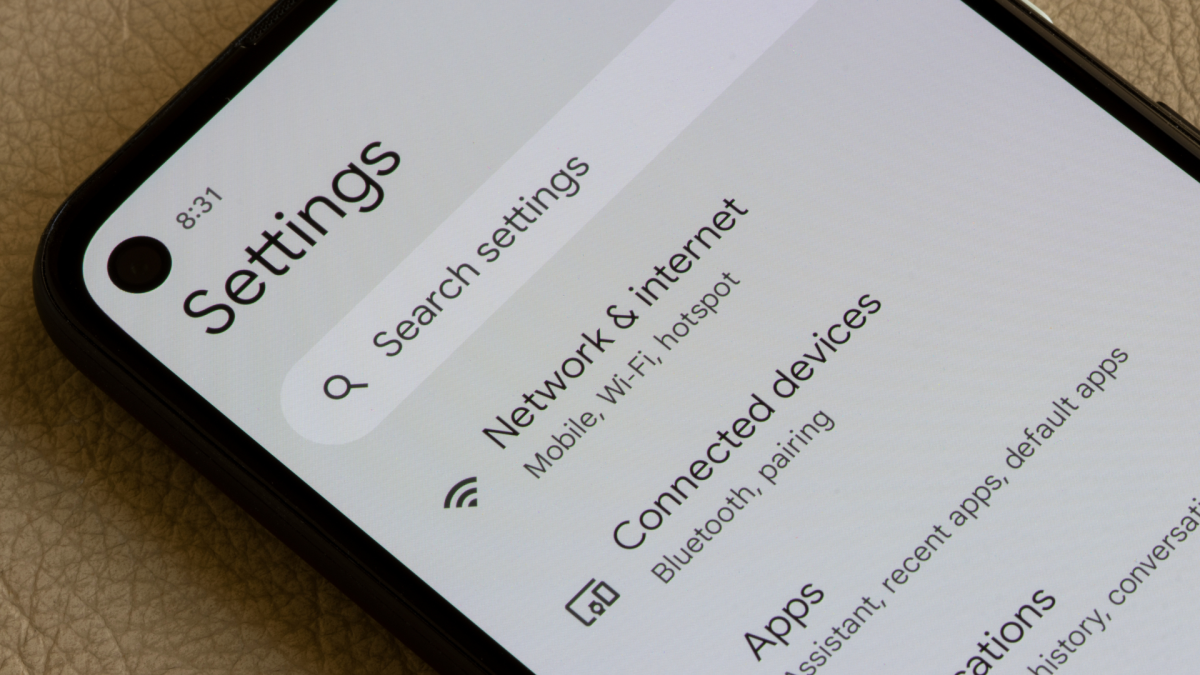
To pin apps, you’ll need to enable the feature in your phone’s Settings app. To do so, go to Security or Security & location > Advanced > App pinning and toggle on Use app pinning and Ask for PIN before unpinning.
Before handing your phone over, open to the app screen you want to pin, then swipe up to the middle of the screen and hold to open your Overview. Tap the app’s icon, then tap Pin. This will keep the user locked into that app until you unpin (using your PIN, pattern, or password).
What do you think so far?
Depending on your device navigation settings, there are a few ways to unpin an app:
-
Gesture navigation: Swipe up and hold
-
2-button navigation: Touch and hold Back + Home
-
3-button navigation: Touch and hold Back + Overview
Note that pinning won’t prevent someone from using the app fully, such as swiping through your photos or typing in the search bar, as Android doesn’t have the option to disable touch. Pinned apps can also open other apps. At the very least, though, it keeps someone from having access to anything and everything on your device.
