

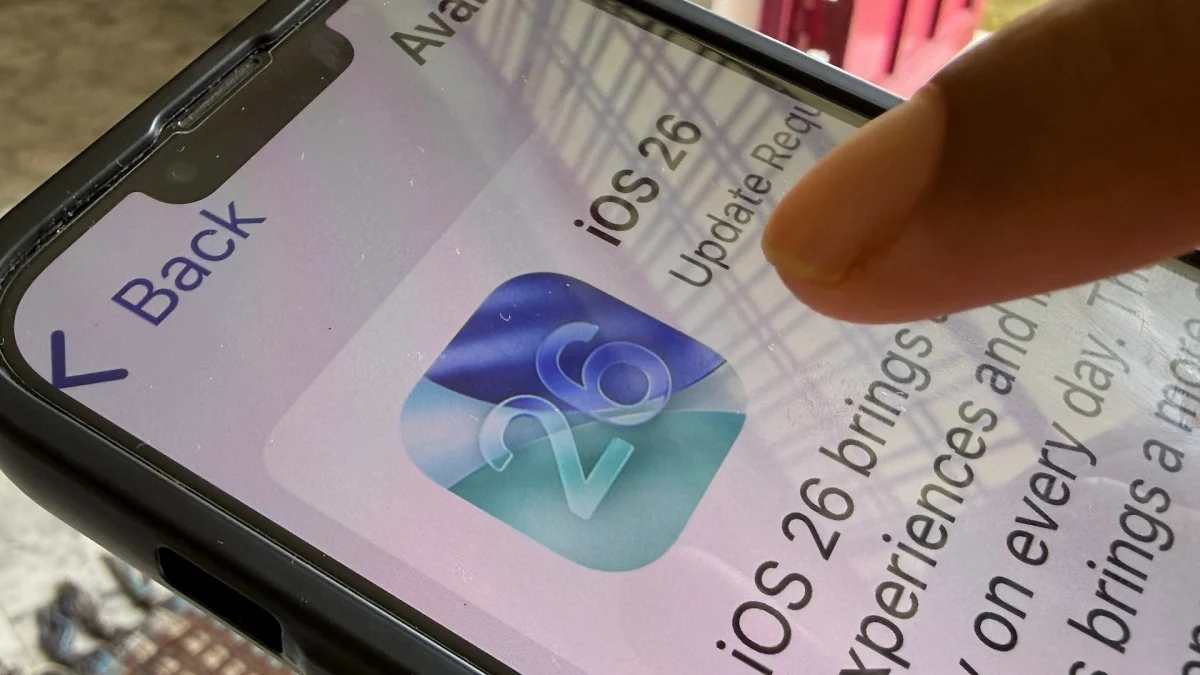
With iOS 26, Apple made it easier for users to reduce spam and overall clutter in their Messages inbox. Your iPhone will detect and hide spam messages, and with the Screen Unknown Senders feature, you can filter out texts from anyone you don’t know. You can also disable push notifications for these conversations to reduce how often you’re alerted for messages you don’t need to see.
Note that this feature works only on iOS, so if you have Messages synced on your Mac, you’ll see everything and receive notifications for all messages unless you mute specific conversations.
How to reduce clutter in Messages on iOS
To send messages from numbers you don’t know to a separate folder, go to Settings > Apps > Messages and toggle on Screen Unknown Senders. You can also get here through the Messages app on your iPhone by tapping the three horizontal menu lines in the top-right corner and selecting Manage Filtering. Enabling Screen Unknown Senders will hide notifications and move messages to your Unknown Senders list. If you want to allow (or disallow) certain types of notifications, tap Allow Notifications and toggle categories on or off:
-
Time Sensitive includes alerts, verification codes, and urgent requests.
-
Personal includes messages identified as not sent by a business or organization.
-
Transactions include order updates, receipts, and confirmations.
-
Promotions include general offers and updates sent to multiple recipients.
Most users will want to enable time-sensitive notifications to receive messages that include time-based one-time passwords (TOTPs) and other urgent alerts. You may also want to allow personal notifications so you don’t miss messages directed to you individually from real people who aren’t saved in your contacts.
What do you think so far?
When you allow notifications, texts identified in those categories will appear in your Messages list for only 12 hours before being moved to Unknown Senders—a behavior that keeps your primary inbox streamlined. If you want to make an unknown sender a known sender to prevent future messages from being filtered out, open the conversation and tap Mark as Known at the bottom or add the number to your contacts. A known sender is anyone you’ve added to your Contacts, sent a message to, or marked as known in the conversation.
Finally, if you enable Filter Spam under the same menu in your device settings, Apple will send messages identified as spam to a separate Spam list and hide notifications. You can view these and conversations from unknown senders at any time via Messages > Menu.
