

One of the ways AI models are rapidly improving is in their image editing capabilities, to the extent that they can now quickly take care of tasks that would previously have taken a substantial amount of time and effort in Photoshop. This is undoubtedly one of the main reasons Adobe has decided to introduce its own ChatGPT plug-ins.
Want your t-shirt to be blue rather than red? Need to cut out a person or an object from an otherwise perfect group selfie? These are tricks that AI chatbots are now able to do cleanly and professionally, from just a text prompt. You don’t need to have any digital photo editing skills; you only need to describe what you want to happen.
Over the past few months, both Gemini and ChatGPT have become better at more precise edits. They’re able to tweak part of an image and leaving the rest of it untouched, rather than rendering everything again from scratch just to alter one detail. Now Gemini has quietly added some more markup tools for this job.
Marking up images in Gemini
Google hasn’t said anything officially about these markup tools, which suggests the feature is still in testing (it’s also previously been spotted by the team at Android Authority). If you’re not seeing these tools, try quitting and restarting the Gemini app on mobile, or refreshing the app on the web—and if you still can’t see the options after that, you may have to be wait a little bit longer
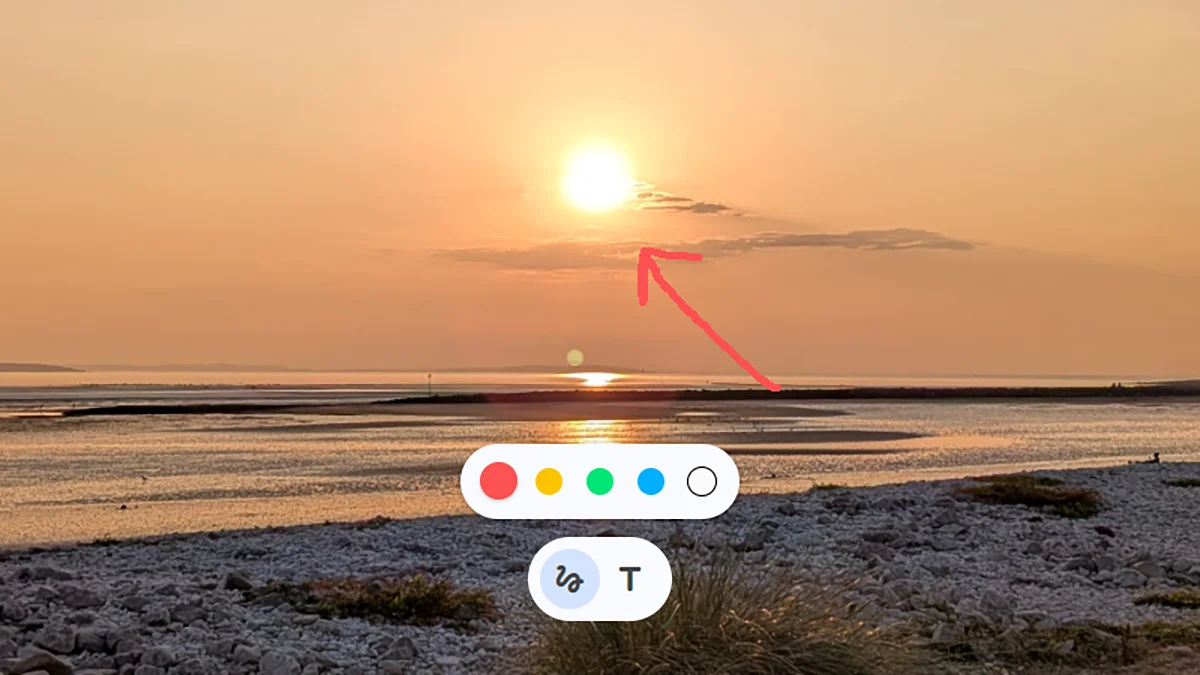
If this functionality has rolled out to you, you should be able to upload an image in a chat using the + (plus) button in the prompt box, and then tap or click on the image thumbnail to find the markup tools. At the moment, they only show up before the image has been edited—you can’t find them after you’ve started generating edits.
Look out for this pop-up to see if you have the new feature.
Credit: Lifehacker
The easiest tool to understand is the drawing tool, which is enabled via the icon that looks like a scribble. You can use this to highlight a particular part of an image—a space in the sky, a lamppost in the street, a face in a crowd—and then describe the change you want Gemini to carry out.
For example, rather than just saying “add a cartoon dragon in the sky” in your prompt, you can actually combine that prompt with a circle on the image showing exactly where the dragon should go. It gives you even more of that Photoshop-level precision, without cluttering up the interface too much.
What do you think so far?
The scribblings can also be used if you’re asking questions about the image. For example, you could circle an actor or an object in a scene and then ask “who is this?” or “what is this?” in the attached prompt. In that sense it works in a similar way to the Circle to Search feature that’s available for images on Android.
You can add scribbles and text to your images.
Credit: Lifehacker
There’s also a text tool—the T icon—but I’m not sure exactly how you use this (and there’s no official help available yet). You can use it to describe changes you want to apply to your picture (like “an add arrow here”), but the text stays in place—it’s almost like a rudimentary text overlay feature, with a choice of colors but no font or styling options.
You can use the prompt to manipulate the text you’ve added, adding outlines and backgrounds for example, so perhaps that’s the way it’s intended to be used: a more precise editing option, but for text. Presumably once these tools have reached all Gemini users, we’ll get some more information from Google on how to use them—but you may well find they’re available to you now.
