

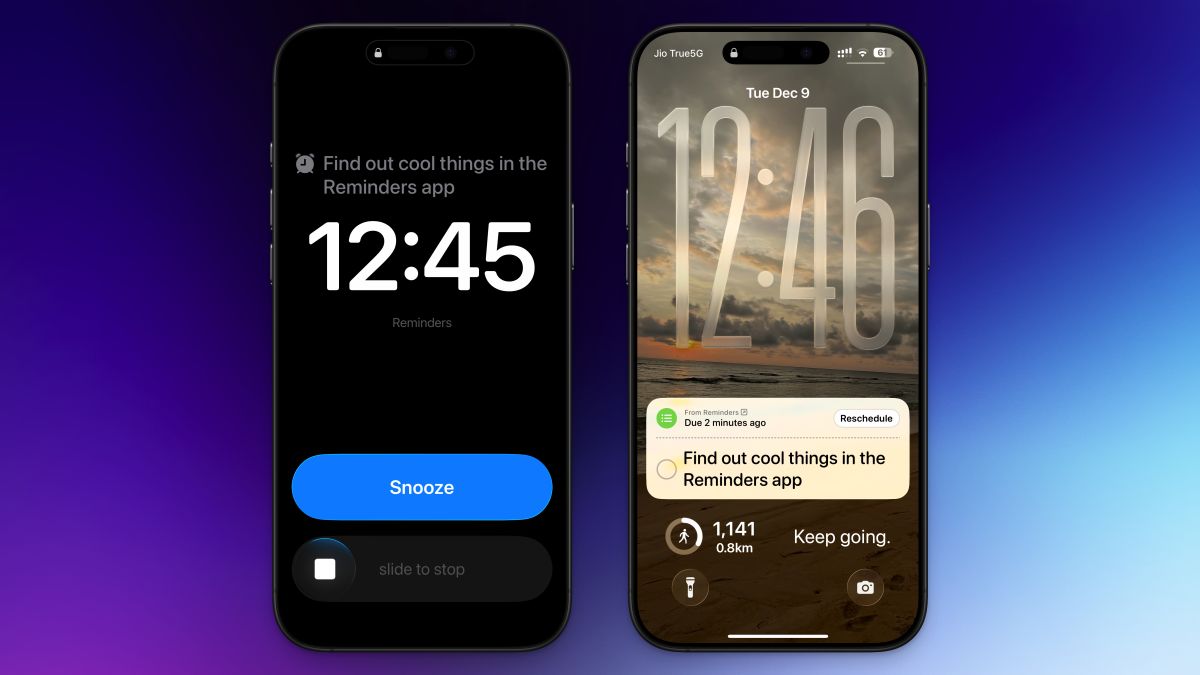
Apple’s various apps and utilities are finally starting to talk to each other, and it’s great news for iPhone users. Last year, Apple added the ability to sync Reminders with Calendar, which added time-based reminders directly into your Calendar view—a feature I now regularly use. Now, with iOS 26.2, Apple is finally integrating Reminders with the Alarms app; you’ll be able to set an accompanying alarm for any reminder.
If, like me, you tend to be forgetful—if you need a reminder for your reminder—this will be a handy feature. The alarm will sound, taking up your entire screen until you dismiss it. And yes, you can snooze it.
How to add an alarm to any reminder on your iPhone
To get started, open the Reminder app, navigate to a task list, and either create a new reminder, or edit it. When you’re adding a date and time, you’ll see a new Urgent toggle. When you enable the Urgent mode, it will turn on an alarm that will go off when the reminder is due. The alarm will trigger even when your iPhone is in silent mode or in a Do Not Disturb Focus mode, so be careful when setting it up.
Credit: Khamosh Pathak
When you enable this for the first time, you’ll get a connection request for integrating Reminders with Alarms. Here, tap Allow. If you don’t see this popup, or if you’ve dismissed it before, go to Settings > Apps > Reminders, and in the “Allow Reminders to Access” section, enable the Alarms toggle.
When the reminder is due, you’ll see a full-screen reminder interface, with the reminder up top, and an option to slide to stop (using Apple’s new sliding interface for dismissing alarms, which you can disable if you want). You’ll also see a big blue Snooze button. This will snooze the reminder for nine minutes.
What do you think so far?
Whether you hit the Snooze button or you use the slider to stop the alarm, Apple will add the Reminder to the top of the notifications list, as a Live Activity. You’ll see the reminder, with the snooze duration (if enabled), and the task. To actually complete the task, you’ll have to check it off from the Live Activity or the Reminders app.
Credit: Khamosh Pathak
Unlike in the new alarm feature, there’s no way to edit the Snooze duration for reminders, or to disable the slider. If you don’t like the Snooze feature or the two-tap approach to completing reminders, you can switch it out for a Complete button instead. Go to Settings > Apps > Reminders and in the “Urgent Reminders” section, enable the Complete from Alarm feature. Now, when the alarm goes off, you’ll see two buttons instead: Slide to Stop and Complete. When you tap Complete, the alarm will disappear, and the task will be marked as Complete.
